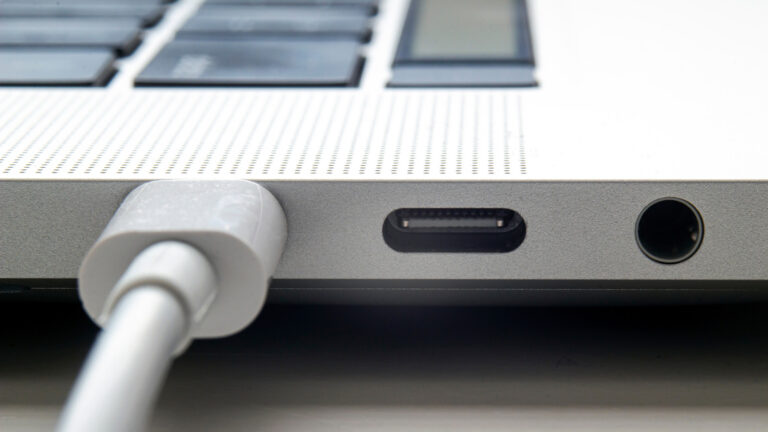
If your USB device isn’t showing up on your MacBook, don’t panic—it’s a common issue with straightforward causes. According to recent guidance from Engadget (November 9, 2026), the problem often stems from simple hardware faults like a damaged cable or loose connection, rather than complex system failures. Before diving into software settings, creators should first inspect their USB cable and port for physical wear or debris that could interrupt power or data transfer.
Sometimes the issue lies in power delivery, especially with bus-powered devices like external SSDs or audio interfaces. Using a powered USB hub or connecting directly to a high-output Thunderbolt/USB-C port can resolve intermittent detection problems. Engadget notes that macOS may also fail to mount a drive due to file system corruption or incorrect formatting—common when switching between Windows and macOS workflows. Checking Disk Utility for unmounted volumes or errors is a critical early step.
Software glitches can also interfere, particularly after system updates. Resetting the System Management Controller (SMC) or NVRAM has helped some users restore USB functionality, especially on Intel-based MacBooks. For Apple Silicon models, a simple restart often clears transient USB controller issues. Creators relying on peripherals for video editing, photography, or music production should keep their macOS updated to ensure compatibility with newer USB standards and drivers.
If the device works on another computer but not your MacBook, the fault likely lies in the machine’s USB subsystem. In such cases, Apple Diagnostics or visiting an authorized service provider may be necessary—but most cases are resolved with a cable swap, port change, or basic system reset. Always back up data before attempting disk repairs, and avoid forcing connections that feel loose or misaligned. Proactive maintenance keeps your creative workflow uninterrupted.
Join the conversation
Load Facebook comments to read and reply using your Facebook account.