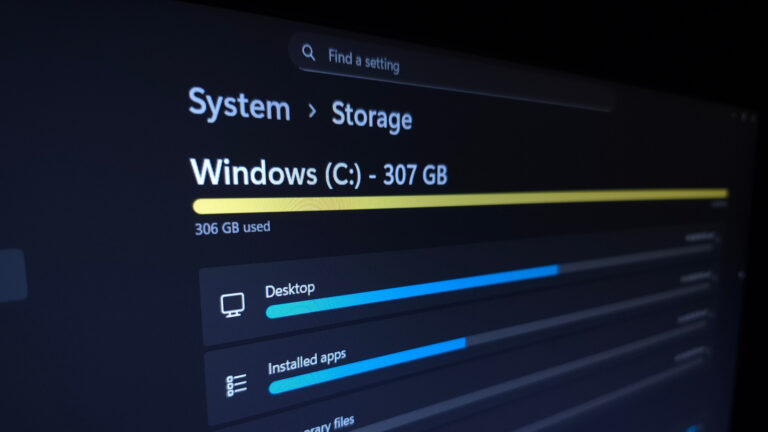
Keeping your Windows PC running smoothly starts with understanding what’s consuming your storage space. As file sizes grow—especially for video editors, designers, and other content creators—regularly checking disk usage becomes essential. A methodical approach helps you pinpoint large files, unused apps, and temporary data that can safely be removed to free up valuable space.
Begin by using built-in Windows tools like Settings > System > Storage, which breaks down usage by category such as apps, documents, and temporary files. This view lets you quickly identify which areas are consuming the most space without needing third-party software. For deeper insight, Storage Sense can automate cleanup of recycle bin items and temporary files based on your schedule.
Creators working with large media files should pay close attention to the "Other" and "Temporary files" sections, where cache data from editing software or unused project renders often accumulate. Reviewing these areas periodically can recover gigabytes of space tied to outdated previews or backup files.
Once you’ve identified what to remove, use the "Cleanup recommendations" feature in Windows Settings to safely delete suggested files. Always double-check before deleting items in folders like Downloads or Documents to avoid losing active projects. Regular maintenance not only frees space but also improves system responsiveness during intensive creative workflows.
By making storage checks a routine part of your workflow, you ensure your PC stays optimized for performance—letting you focus on creating, not managing clutter.
Join the conversation
Load Facebook comments to read and reply using your Facebook account.